Seamless3d III Featuring a Greatly Simplified Interface
Version Update Index
2013 October 19, 22:24 GMT
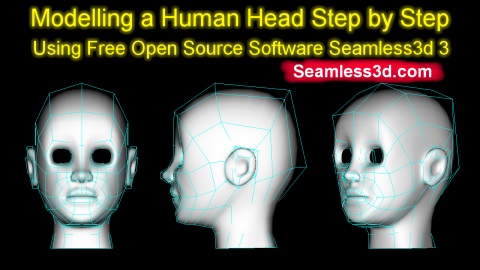
 Although Seamless3d 3 has evolved from version 2 and maintains being a general purpose modeller, this is the very first version (3.000) to be released after major changes have been made to the design, so please treat it like a prototype as it is not yet complete and there are many scenarios it can not yet deal with, however if you follow the Modelling a Human Head Step by Step Using Free Open Source Software tutorial video, which is very easy to follow, you have the certainty of being able to model a human head in your own style.
3.001 Update
2013 November 26, 11:23 GMT
3.001 has been made significantly more forgiving for beginners who make simple mistakes when following the Modelling a Human Head Step by Step tutorial.The toolbar has been split in two so that the top bar is now at the top of the 3d window and the lower bar is at the bottom of the 3d window. The reason I made this change was because I realised when in animation mode, the lower bar is redundant and so I thought why not replace the lower bar with the Anim bar. Because this would result in the top bar moving up to make room for the Anim bar it seemed a better idea to split the bar so that the top bar can stay positioned permanently at the top of the 3d window. It annoyed me to make this change as the modelling a human head step by step tutorial will now look a little different to what the user sees but this tutorial is essentially up to date as the buttons look the same and function the same, just the top bar has changed its location.
The Anim bar now uses up the full width of the 3d window by default.
When seamless is put into skeleton edit mode, the lower toolbar changes so that it contains buttons that are in context for editing a skeleton. New bones can still be added by holding down the right control key while clicking but now the cursor changes to give feedback. Also to make seamless more self explanatory and be consistent with other operations, there is now a button the user can click to add bones. By default if the user drags a bone while in skeleton edit mode, all of the dependent bones will move with the bone being dragged same as before but now there is the option of being able to drag a bone without its descendent bones changing their location by clicking the toggle drag with descendants mode button.
A number of shortcut keys have been assigned for commonly used functions:
|
If the user clicked the extrude button before selecting a control point, 3.000 would crash but 3.001 wont.
If the user accidently clicked on empty space (missed a control line) after clicking the insert control line button and then clicked anywhere inside the 3d window 3.000 would crash but 3.001 wont.
3.001 has had code added to end temporary modes automatically to make seamless less critical for the user to remember to click done, for example, after adding a lathe.
If the user clicked undo and then tried to hide the grid, the grid would not hide for 3.000 but it does for 3.001
When creating a NurbsLine, 3.000 would crash. This bug has been fixed for 3.001
There are now 2 rotation levers in Anim mode and the Anim levers reset when the view is changed the same as for modelling mode.
A field drag3dSensitivity has been added to the Settings control panel so that the mouses sensitivity can now be adjusted when dragging in the 3d window.
Many thanks to Carlos for his feedback and bug reports.
3.002 Update
2014 February 24, 05:15 GMT
A new hands modelling tutorial has been uploaded. With this and future tutorials in mind, 3.002 addresses a number of issues which makes Seamless3d easier to use.Adding Boxes more uniform with adding lathes
When adding a box the length width and height can now be set and 2 boxes will be added in mirror mode.Adding Spheres more uniform with adding lathes
When adding a sphere the radius can now be set and 2 spheres will be added in mirror mode.Grouping patches made more effective
Seamless3d III made it so patches do not need to reference part nodes. This significantly reduced the clutter in the scene tree window but it is still nice to be able to specify different parts for different groups of patches in a model. This desire has been addressed by making it so that a group of patches contained in a GroupBuild node will now generate triangles for the part referenced by the GroupBuild.When a lathe, sphere or box is now converted to a patch/s, a BuildGroup node is added to contain the patch/s.
When importing patches from a file a BuildGroup node is automatically added for the imported patches if they do not already have one.
Object Select mode functionality
Object Select mode now has some functionality added. In Object select mode you can now select an Object (a Seamless node) by simply clicking on its geometry in the 3d window. In the future you will also be able to select a Camera/Viewpoint or a Light. Pink lines mark the selected object.X Y X drag filter
You can now globally filter which dimensions you can drag any number of selected points by opening the control point selection control panel (click the pink flower button) and using the xTug, yTug and zTug check boxes.Create mirror polygons for selected part working in BNSPE
In poly edit mode you can now create an exact mirror copy of your triangle structure for the opposite side selected (a selected vertex selects the side) by clicking the mirror part button. This works for BNSPE (Borderless Nurbs Surface Poly Editing).Automatically add parts when importing patches
You no longer have to manually add parts with matching names when importing patches and build nodes that reference parts because when seamless can not find a matching name it will now add a new part.Drag view in paint mode
When in paint mode if you drag on empty space you can pan the view same as you can in other modes so long as the paint brush radius is out of range of any triangles.New inside out part button for poly edit mode
In Poly Edit mode you can now create polygons for a selected part inside out. This function departs from using copy and paste, instead you select the part for the source then click the inside out button which will open a control panel which contains an add check box and an ok button. While the control panel is open you can select a different part for the destination polygons.Visual radius for paint brush
A circle arround the center point of the paint brush is displayed in the 3d window as a helfull visual clue to show the colour and size of the brush.Adjust brush radius using mouse wheel
You can now adjust the radius for the paint brush and the radial tug using the mouse wheel if you hold down the left control key.Part selection in paint mode made easier
You can now select a different part in the scene tree window without switching out of paint mode.Frequent crashes in paint mode fixed
A bug that would often crash seamless when using the paint brush has been fixed.Sphere conversion issue fixed
When converting a sphere to a patch the type of patch was incompatible for stitch patch modelling. This has now been fixed.Import patch auto name fail fixed
In some scenarios seamless would fail to create a patch with a unique name when importing patches. This has now been fixed.Recent files link crash fixed
A Crash could result from clicking on a link in the recent files list if the file opened into paint mode. This has now been fixed.Nurbs lathe orientation spindle bug fixed
The mouse cursor failing to change state after moving the cursor away from the nurbs lathe orientation spindle when adding a lathe has been fixed.3.003 Update
2014 November 18 GMT 00:19
Please see the video made to accompany the release of this version: Seamless3d 3.003, Water Crisis, Antechinus, Winter VlogDiversions more reliable
Most of the time spent on the upgrade has been on making Seamless be able to deal with a wide range of scenarios when diverting a control line.Positive symbol shown when adding a lathe
A positive symbol (plus sign) is now displayed at the base of the lathe's spindle when adding a lathe. This is to indicate which side of the lathe the user should start adding their control points at. The user should start on the positive side and move in the direction the end of the spindle is pointing to if it is desired for the lathe to begin being visible on the outside.Export Obj working again
In the upgrade to the new layout for Seamless3d 3, the menu for exporting obj files was broken. This is back working again for 3.003Techuelife Island working again for Seamless chat
3.002 made it so that you no longer have to manually add parts with matching names when importing patches but this apparently did not extend to other build nodes such as spheres and boxes which has been addressed for 3.003Automatically add parts when importing spheres, boxes, lathes etc. too
3.002 made it so that you no longer have to manually add parts with matching names when importing patches but this apprently did not extend to other build nodes such as spehres and boxes which has been addresed for 3.003Boxes & Spheres can be added in other dimensions
Until now, boxes and spheres could only be added to a xzPlane. With 3.003, boxes and spheres can be added to any plane that is specified for the grid.Boxes can be added negative side of grid
Whether you’re looking down at the grid or up to it, forward, backward, left or right, boxes can be added to the grid.Fixed add lathe bug
When adding a lathe, a bug would occur if the user accidently dragged the mouse when selecting a point to set the orientation of the lathe. This has been fixed for 3.003Fix import node bug
When importing nodes from another file, a bug could occur depending on what names were used for the nodes. This has been fixed for 3.003[3d Modelling Software] [Tutorials] [Forum] [Features] [Download] [Gallery] [FAQ] [Chat] [Avatars] [Links] [Thyme]